← Back
Ted-Bot logo
Documentation

Ted-Bot RCE

Player Setup

How To Link

Player linking is important because not linking blocks XP, TED Bucks, channels, and other server features tied to your account.

Quick Overview

The short version if you just want the fastest route from Rust to portal access.

  1. 01Open Rust and join your server.
  2. 02Log in on the website using Discord and enter your in-game name.
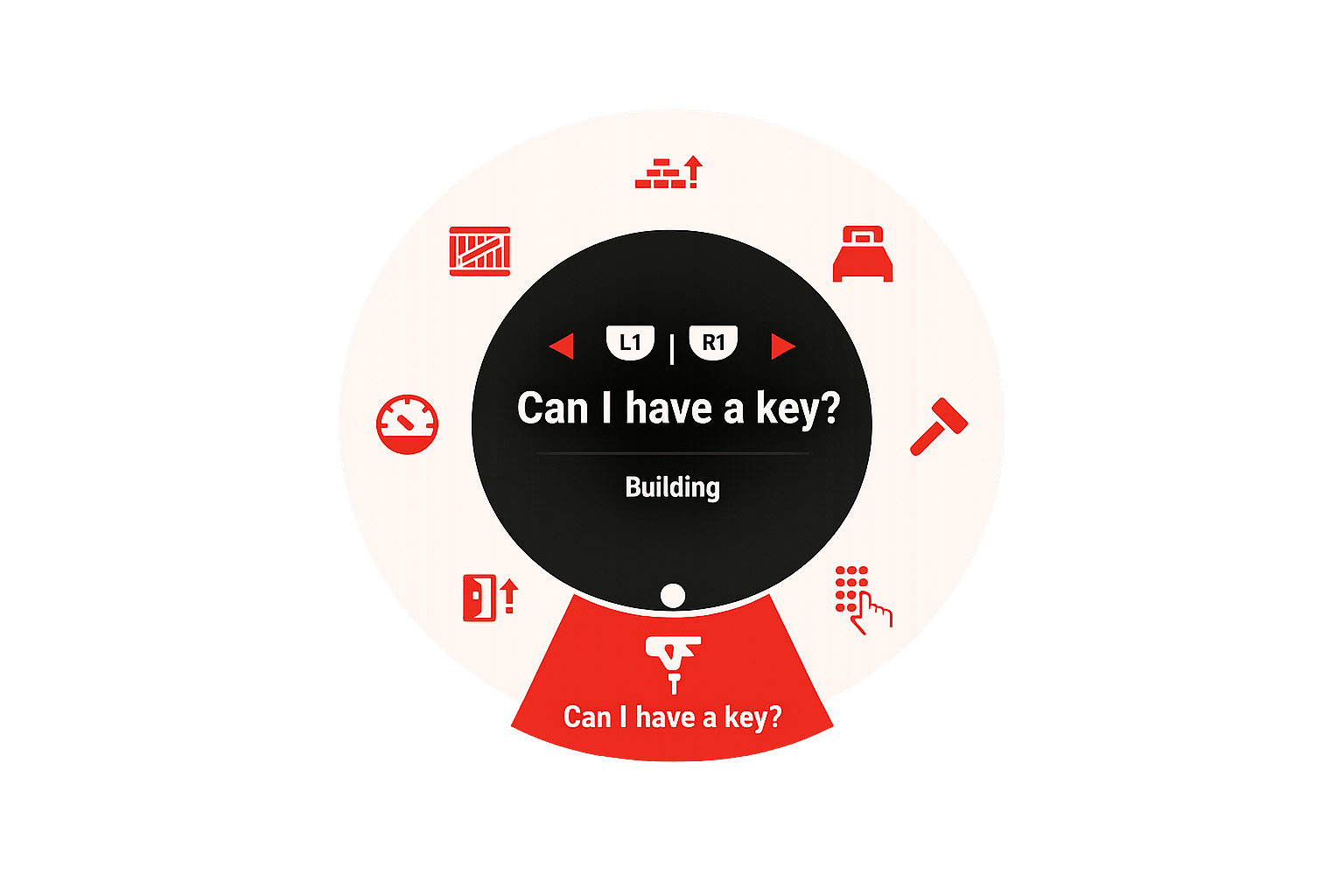
  3. 03Use quickchat "Can I have a key?"in-game.
  4. 04Choose your player slot.
Launch

Start Rust and join the server you want to link to.

Make sure you are already connected to the correct Rust server before you begin the linking process. The link has to be completed against the same server you intend to use.

Sign In And Enter Name

Open the linking page.

Sign in with Discord to start linking your account.
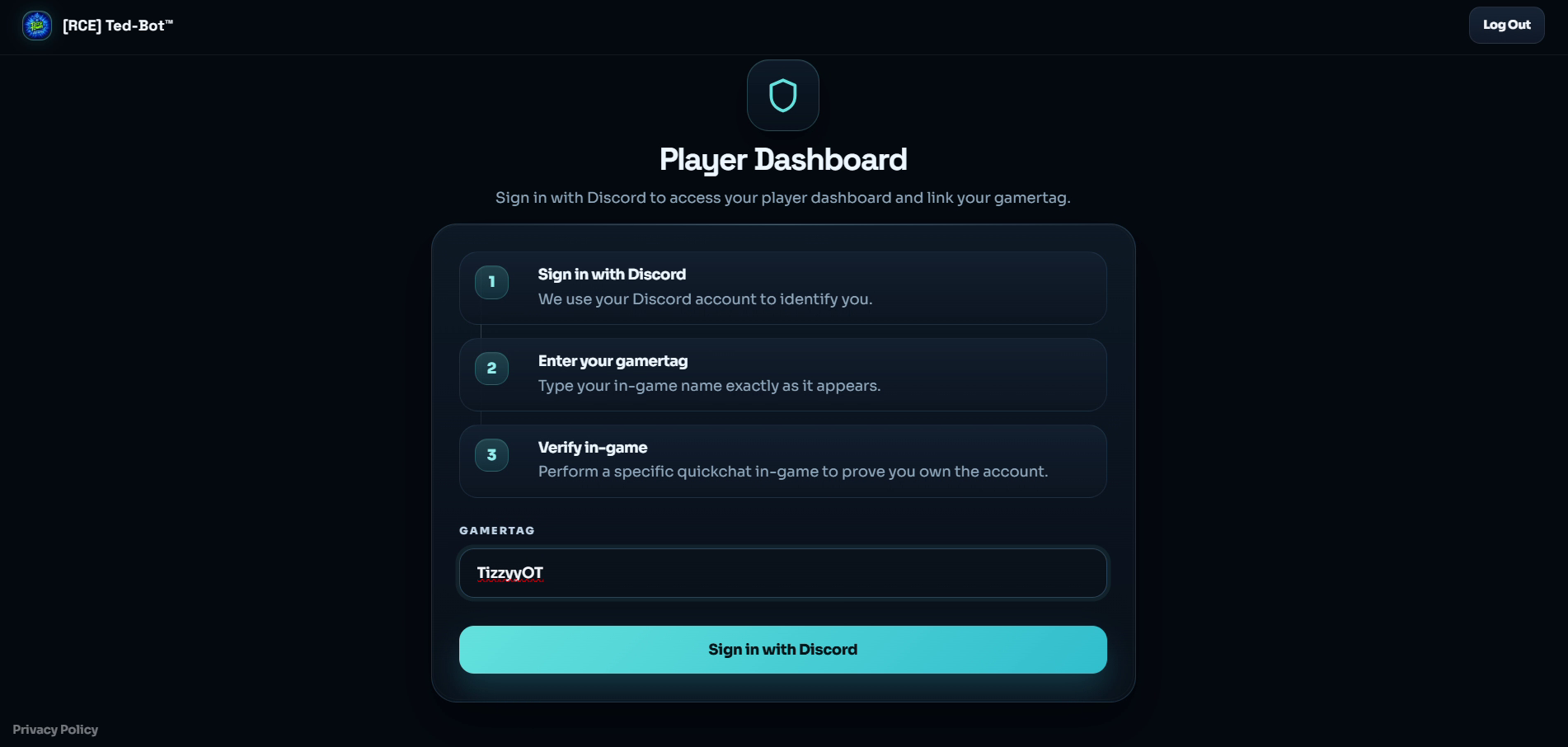
Ted-Bot linking page where the player enters their in-game name
Enter your exact Rust name here.
Wrong spelling will fail verification.
Verification

Verify your account with Rust quick chat.

When the timer starts, open the quick chat wheel and send "Can I have a key?" exactly as shown.

Ted-Bot verification timer during the linking process
Keep an eye on the countdown while you complete the verification.
Rust quick chat phrase Can I have a key used for account linking
Select the highlighted quick chat option shown here while you are in the server.
You only have 60 seconds before this verification attempt expires.
Complete

Choose your player slot and continue into the portal.

After your verification is accepted, you will be taken straight to slot selection.
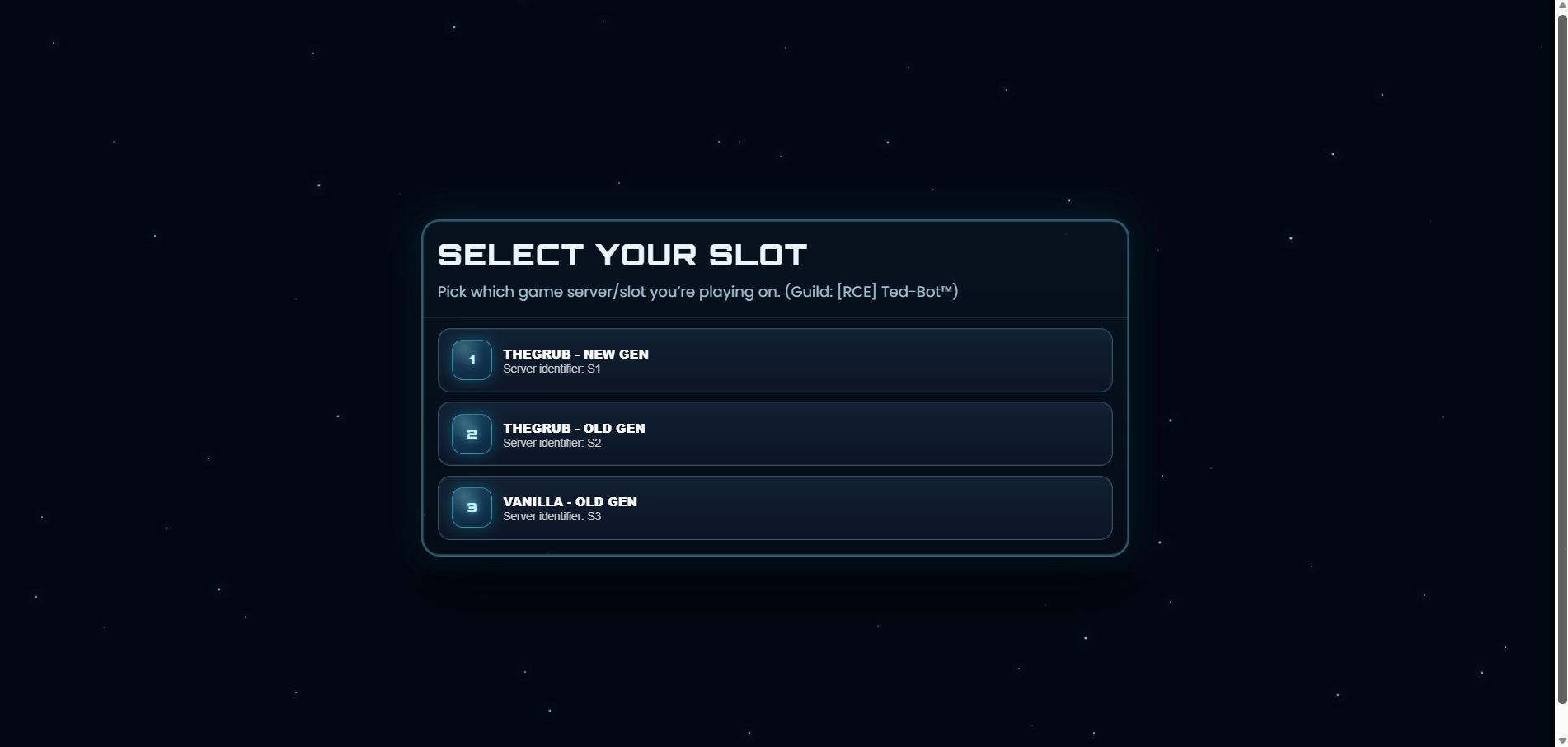
Ted-Bot link success screen leading into the player portal slot selection
Your linked account is now ready for slot selection.
If linking fails, double-check that you are in the correct Rust server and that your in-game name was entered exactly right.
Player Purchases

How To Use The Shop

The shop lets you buy items for the exact server slot you are viewing, then claim them in-game right away from the correct storage.

Quick Overview

The fast version if you just want to get in, buy something, and claim it.

  1. 01Log in with Discord and pick the slot you want to buy on.
  2. 02Open the Shop tab and browse categories or products.
  3. 03Select an item, review the quantity, and confirm the purchase.
  4. 04Use the receipt to claim it in-game or jump straight to storage.
Sign In

Log in with Discord and choose the slot you want to purchase on.

Make sure you are on the same slot you want the purchase delivered to before buying anything.

Server selection is skipped if that Discord account only has one server available.
Browse

Head to the Shop tab and browse categories or items.

Once you are signed in, open the Shop tab to move through the item categories and pick what you need.

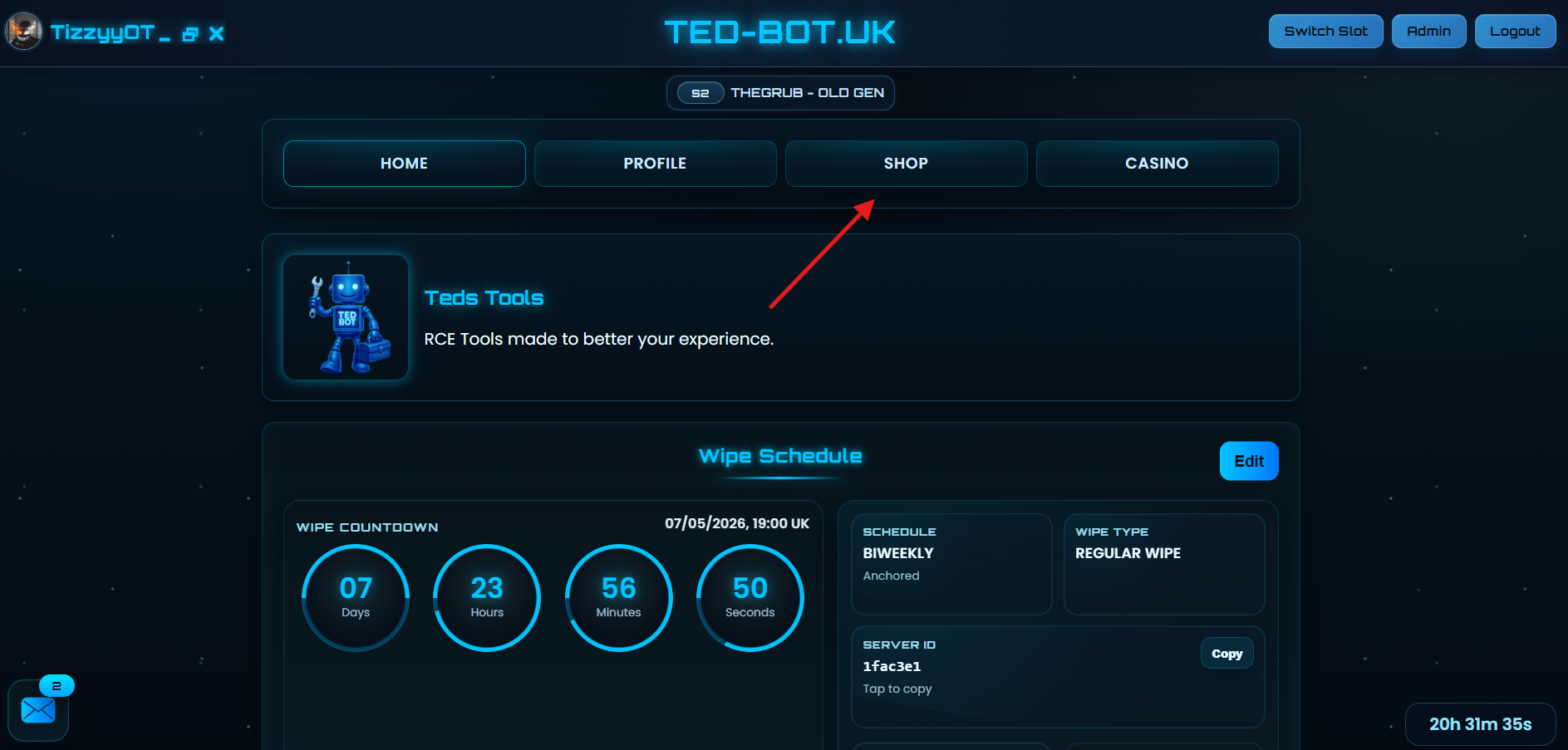
Ted-Bot dashboard shop tab highlighted for navigation
Open the Shop tab from the player dashboard.
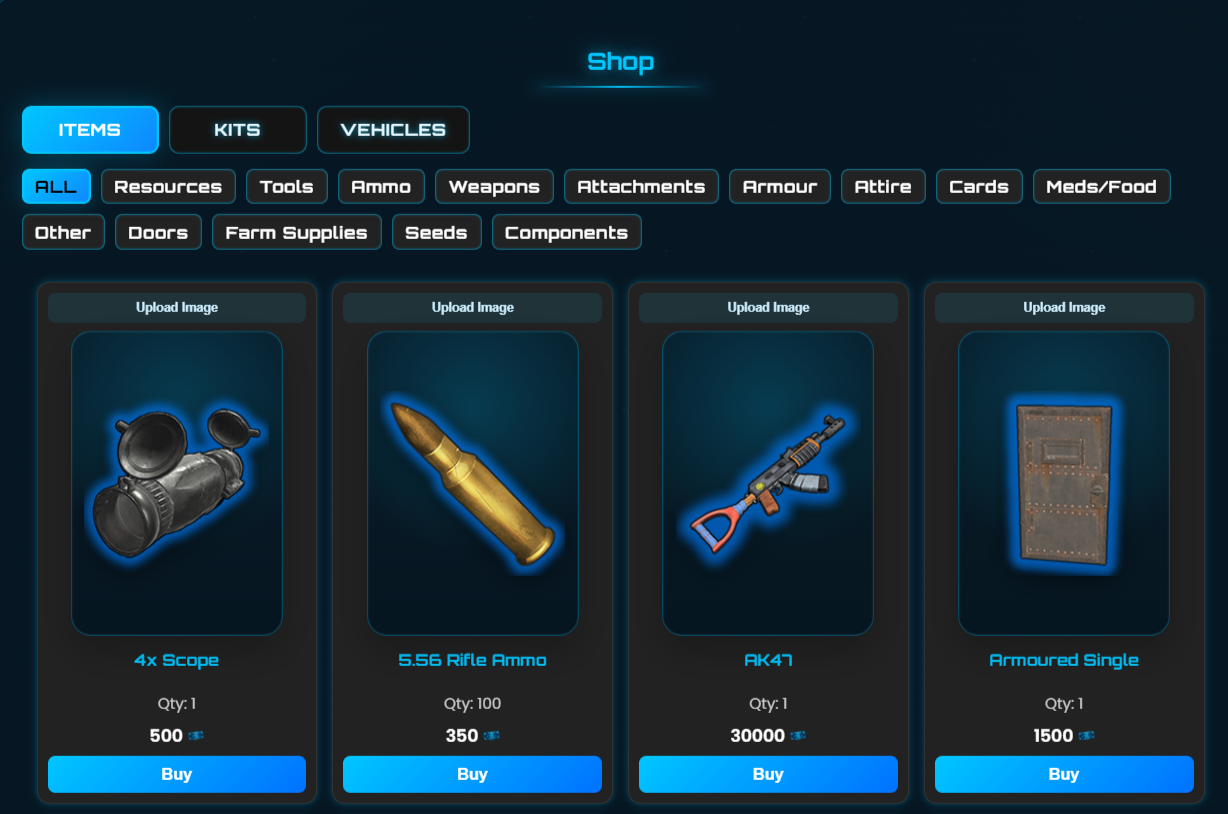
Ted-Bot shop categories and products screen
Browse categories first, then drill into the products you want.
Confirm

Select a product and review the confirmation popup.

Press buy on the item you want, adjust the quantity if needed, then confirm the purchase when you are happy.

Ted-Bot shop purchase confirmation popup
Use the popup to confirm quantity and finish the purchase.
Double-check the quantity before confirming so you do not buy more than you meant to.
Claim

Read the receipt and claim the item in-game.

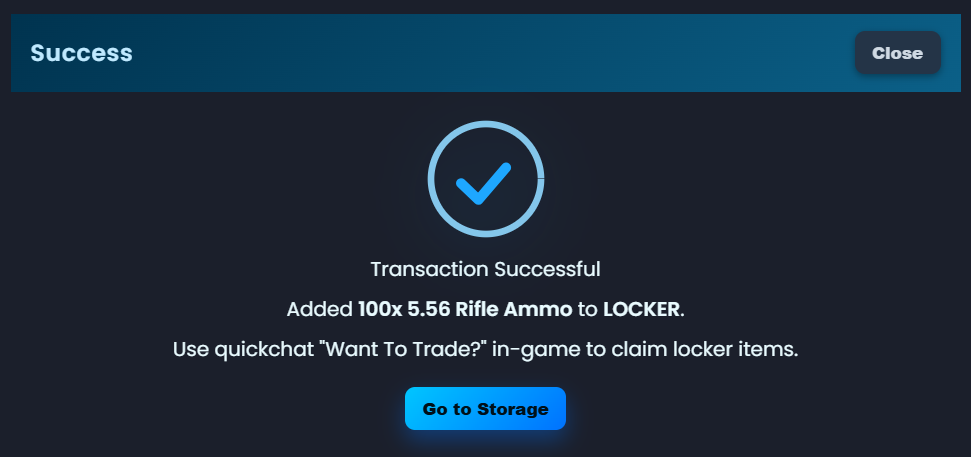
The result screen tells you which storage received the item, how to claim it in-game, and gives you a shortcut straight to storage.

Ted-Bot shop purchase receipt showing storage destination and claim instructions
The receipt shows the storage destination and the exact in-game claim instruction.